
Create Space Button Macro
Add the Create Space Button macro to a page to provide a quick, visual prompt to create a space in Confluence. The Create Space Button provided by the macro is only be visible to people who have the who have the Create Space global permission.
This is a legacy macro and was primarily used before you could create a space directly from the Spaces dropdown in the header. However, it might be useful when documenting a procedure that requires creating a space, for example a set-up guide for new teams.
On this page:
Screenshot: page showing the Create Space Button macro.

Add this macro to your page
To add the Create Space Button macro to a page:
- From the editor toolbar, select Insert
 , then Other Macros.
 - Choose Create Space Button from the Confluence content category.
- Choose Insert.
You can then publish your page to see the macro in action.
Change the macro parameters
Macro parameters are used to change the behavior of a macro.
To change the macro parameters:
- In the editor, click the macro placeholder and select Edit.
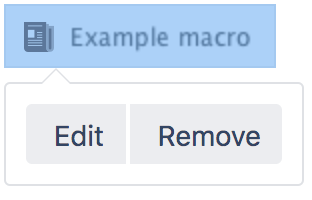
- Update the parameters as required then select Insert.
Here's a list of the parameters available in this macro.
Parameter | Default | Description |
|---|---|---|
Icon Size | large | Specify whether to use large or small icon. Available values:
|
Where the parameter name used in Confluence storage format or wikimarkup is different to the label used in the macro browser, it will be listed below in brackets (example).
Other ways to add this macro
Add this macro as you type
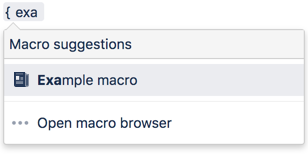
Add this macro using wiki markup
This is useful when you want to add a macro outside the editor, for example as custom content in the sidebar, header or footer of a space.
Macro name: create-space-button
Macro body: None.
{create-space-button:size=small}
{create-space-button:height=50px|width=50px}
The following additional parameters are available in wiki markup.