Notation Guide

Print Help Tips
Headings

To create a header, place "hn. " at the start of the line (where n can be a number from 1-6).

Notation Comment
h1. Biggest heading

Biggest heading

h2. Bigger heading

Bigger heading

h3. Big Heading

Big Heading

h4. Normal Heading

Normal Heading

h5. Small Heading
Small Heading
h6. Smallest Heading
Smallest Heading
Text Effects

Text effects are used to change the formatting of words and sentences.

Notation Comment
*strong* Makes text strong.
_emphasis_ Makes text emphasis.
??citation?? Makes text in citation.
-strikethrough- Makes text as strikethrough.
+underlined+ Makes text as underlined.
^superscript^ Makes text in superscript.
~subscript~ Makes text in subscript.
{{text will be monospaced}} Makes text as code text.
bq. Some block quoted text To make an entire paragraph into a block quotation, place "bq. " before it.

Example:

Some block quoted text

{quote}
here is quoteable
content to be quoted
{quote}

Quote a block of text that's longer than one paragraph.

Example:
here is quoteable
content to be quoted
{color:red}
look ma, red text!
{color}
Changes the color of a block of text.

Example: look ma, red text!

Text Breaks

Most of the time, explicit paragraph breaks are not required - Confluence will be able to paginate your paragraphs properly.

Notation Comment
(empty line) Produces a new paragraph
\\ Creates a line break. Not often needed, most of the time Confluence will guess new lines for you appropriately.
---- creates a horizontal ruler
--- Produces symbol.
-- Produces symbol.
Lists

Lists allow you to present information as a series of ordered items.

Notation Comment
* some
* bullet
** indented
** bullets
* points
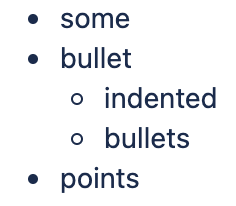
A bulleted list (must be in first column). Use more (**) for deeper indentations.

Example:

  • some
  • bullet
    • indented
    • bullets
  • points

- different
- bullet
- types
A list item (with -), several lines create a single list.

Example:

  • different
  • bullet
  • types

# a
# numbered
# list
A numbered list (must be in first column). Use more (##, ###) for deeper indentations.

Example:

  1. a
  2. numbered
  3. list

# a
# numbered
#* with
#* nested
#* bullet
# list

* a
* bulletted
*# with
*# nested
*# numbered
* list

You can even go with any kind of mixed nested lists:

Example:

  1. a
  2. numbered
    • with
    • nested
    • bullet
  3. list

  • a
  • bulletted
    1. with
    2. nested
    3. numbered
  • list

{dynamictasklist:thingsToDo}

The Dynamic Tasklist Macro displays a task list which can be modified in the page as it is viewed. Despite the fact that this plugin has an ajax UI, it is still fully versioned like a normal Confluence page.

Example:
What you need to type What you will get
{dynamictasklist:Arthurs To-Do's}
Images

Images can be embedded into Confluence pages from attached files or remote sources.

Notation Comment
!http://www.host.com/image.gif!
or
!attached-image.gif!
Inserts an image into the page.

If a fully qualified URL is given the image will be displayed from the remote source, otherwise an attached image file is displayed.

!spaceKey:pageTitle^image.gif!

!/2007/05/23/My Blog Post^image.gif!
Inserts an image that is attached on another page or blog post.

If no space key is defined, the current is space is used by default.

!image.jpg|thumbnail!

Insert a thumbnail of the image into the page (only works with images that are attached to the page). Users can click on the thumbnail to see the full-sized image.

Thumbnails must be enabled by the site administrator for this to work.

!image.gif|align=right, vspace=4!

For any image, you can also specify attributes of the image tag as a comma separated list of name=value pairs like so.

{gliffy:name=My UML Diagram}

{gliffy:name=My UML Diagram|size=M|align=right}

{gliffy:space=Software|page=User flow|name=My user flow drawing|size=T|align=center}

Includes a Gliffy diagram in the page.

  • name - (required) The name of the diagram. This name must be unique for the current page.
  • space - (required if page attribute used, otherwise optional) The space key of the page that the diagram is attached to.
  • page - (required if space attribute used, otherwise optional) The name of teh page that the diagram is attached to.
  • size - (optional, default is L) The size of the image that will be shown. Possible values are 'L' (Full size), 'M' (medium), 'S' (small), 'T' (Thumbnail)
  • align - (optional, default is left) Horizontal alignment of the diagram image on the page. Possible values are 'left','center', and 'right'.
  • alt - (optional, default is diagram name) Image tag alternative text.
  • border - (optional, default is true) Display the border around an image.

{gallery}

{gallery:columns=3}

{gallery:title=Some office photos, and a waterfall|columns=3}

{gallery:title=Some office photos, without the waterfall|exclude=waterfall.jpg}

{gallery:title=One office photo, and a waterfall|include=office1.jpg,waterfall.jpg}

{gallery:title=Some office photos, and a waterfall|page=Gallery of Pictures}

{gallery:title=Some office photos, and a waterfall|page=DOC:Gallery of Pictures}

{gallery:title=Some office photos, and a waterfall|sort=name}

{gallery:title=Some office photos, and a waterfall|sort=date|reverseSort}

Create a gallery of thumbnails of all images attached to a page. This will only work on pagesthat allow attachments, obviously.

The title parameter allows you to supply a title for the gallery

The columns parameter allows you to specify the number of columns in the gallery (by default, 4)

The exclude parameter allows you to specify the name of attached images to ignore (i.e., they will not be included in the gallery). You can specify more than one picture, separated by commas. Example: exclude=my picture.png,my picture2.gif

The include parameter allows you to specifically include one or more attached images. The gallery will show only those pictures. You can specify more than one picture, separated by commas. Example: include=my picture.png,my picture2.gif

The page parameter allows you specify the title of one or more pages which contains the images you want displayed. If a page is in the same space as the page containing the macro, use the format page=My Page Name. To specify a page in a different space, use page=SPACEKEY:My Page Name, such as page=DOC:Gallery Macro. You can specify more than one page, separated by commas. Example: page=Image Gallery,STAFF:Group Photos

If a page or attachment file name contains a comma, you can use it in the include, exclude, or page parameters by enclosing it in single or doublequotes. Example: include="this,that.jpg",theother.png

The sort parameter allows you to control the order of the images. The options are name,comment, date, or size.

The reverseSort parameter is used in conjunction with the sort parameter to reverse the order of the specified sort.

Previous versions of the Gallery macro had an additional slideshow parameter. This is no longer used in the latest version, and the slide show is always enabled. We have left the parameter here for compatibility with older versions of the macro.

Tables

Tables allow you to organise content in a rows and columns, with a header row if required.

Notation Comment
||heading 1||heading 2||heading 3||
|col A1|col A2|col A3|
|col B1|col B2|col B3|
Makes a table. Use double bars for a table heading row. Note that each table-row has to be defined on a single line.

The code given here produces a table that looks like:

heading 1 heading 2 heading 3
col A1 col A2 col A3
col B1 col B2 col B3

{column:width=50%}
Text in this column.
{column}

Defines a single column.

  • width: - (optional) the width of the column.
Must be defined in a section macro.

{section}

{column:width=30%}
Column one text goes here
{column}

{column:width=70%}
Column two text goes here
{column}

{section}


{section:border=true}
...
{section}

If you want to use columns instead of tables, you can define them first by marking a {section}, and then placing any number of {column}s inside.

  • border: - (optional) set to "true" to draw a border around the section and columns.

{csv}
, January, February, March, April
Max, 37.5, 32.7, 28.0, 25.3
Min, 31.3, 26.8, 25.1, 18.7
{csv}

{csv:output=wiki|width=900|border=15|delimiter=whitespace}
Month Max Min Average
January 25.5 *6.3* 15.9
February 32.4 12.8 22.6
March 44.6 24.5 34.6
April 59.7 37.1 48.4
May 72.5 48.7 60.6
June 81.3 57.9 69.6
July 85.2 62.8 74
August 82.5 60.7 71.6
September 73.7 51.7 62.7
October 61.1 40.1 50.6
November 43.6 27.4 35.5
December 29.9 13.6 21.8
{csv}

Converts csv and other deliminated data into a table. CSV is not a formal standard, but the best reference is The Comma Separated Value (CSV) File Format. The support in this macro comes close to following this pseudo-standard. For more details see SCRP-16. This macro shares common table capabilities with other table based macros (excel, table-plus, and sql).

  • output - Determines how the output is formated:
    • html - Data is output as a HTML table (default).
    • wiki - Data is output as a Confluence wiki table. Use this option if you want data within the table to be formated by the Confluence wiki renderer.
  • script - Location of csv data. Default is the macro body only. If a location of data is specified, the included data will follow the body data.
    • #filename - Data is read from the file located in confluence home directory/script/filename. Subdirectories can be specified.
    • global page template name - Data is read from a global page template.
    • space:page template name - Data is read from a space template.
    • ^attachment - Data is read from an attachment to the current page.
    • page^attachment - Data is read from an attachment to the page name provided.
    • space:page^attachment - Data is read from an attachment to the page name provided in the space indicated.
  • url - Specifies the URL of an csv file. If a url location is specified, the included data will follow the body and script data. Use of this parameter may be restricted for security reasons. See your administrator for details.
  • heading - Number of rows to be considered heading rows (default is 1 row). Specify heading=false or heading=0 to not show any heading lines.
  • border - The border width in pixels. Defaults to normal table border width.
  • width - The table width in pixels. Default is 100%.
  • delimiter - Delimiter that separates columns. Note that trailing delimiters on a line result in a blank column at the end of the row.
    • , or "," (comma) - The default column separator.
    • whitespace - Blanks, tabs, and other white space are used to separate columns.
    • blanks - Blank or blanks only.
    • other single character delimiter - may be within double quotes with some restictions. Examples: ";", "=",
  • quote - the character used to represent quoted data. Quoted data may contain delimiters or new lines. Quote character data must be doubled inside a quoted string.
    • double - Double quote character (default).
    • single - Single quote character.
  • escape - When wiki output is requested (output=wiki), some special characters (like '|', '[', ']', '{', '}') in data may cause undesirable formatting of the table. Set escape=true to allow these special characters to be escaped so that it will not affect the formatting. The default is false so that data that has wiki markup will be handled correctly.
  • showWiki - Default is false. Set to true to show a non-formatted version of the wiki table following the formatted table. This is used to help resolve formating issues.
{table-plus}
|| || January || February || March || April ||
| Max | 37.5 | 32.7 | 28.0 | 25.3 |
| Min | 31.3 | 26.8 | 25.1 | 18.7 |
{table-plus}

{table-plus:width=500|border=15|enhableHighlighting=false|columnTypes=S,F,F,F}
|| Month || Max || Min || Average ||
| January | 25.5 | *6.3* | 15.9 |
| February | 32.4 | 12.8 | 22.6 |
| March | 44.6 | 24.5 | 34.6 |
| April | 59.7 | 37.1 | 48.4 |

Other text can be here too!

|| Another table || | more data | {table-plus}

{table-plus:columnTypes=S,-,.|autoNumber=true|sortColumn=3
|columnAttributes=,,style="background:yellow; font-size:14pt;"}
|| Name || Phone || TCP ||
| John | 555-1234 | 192.168.1.10 |
| Mary | 555-2134 | 192.168.1.12 |
| Bob | 555-4527 | 192.168.1.9 |

{table-plus}

Adds column sorting and other attributes to one or more tables found in the body of the macro. The tables can be produced by wiki markup or other means. This macro shares common table capabilities with other table based macros (excel, csv, and sql).

  • heading - Number of rows to be considered heading rows (default is 1 row). Specify heading=false or heading=0 to not show any heading lines. Heading rows do not participate in sorting.
  • footing - Number of rows to be considered footing rows (default is 0). Footing rows do not participate in sorting. An auto total row is automatically treated as a footing row.
  • width - The table width in pixels. Default is 100%.
  • border - The border width in pixels. Defaults to normal table border width.
  • multiple - Default is true which means all tables found within the macro body are processed. Set multiple=false to only process the first table found and may need to be used if the table includes cells that are also tables.
  • Other parameters - Other parameters are passed through to the html table markup for more advanced capabilities or to override the default class

Common table capabilities

A javascript enabled browser is required to enable these capabilities. A number of table based macros (table-plus, csv, excel, and sql) share these common capabilities.

  • Column sorting - sort a column by clicking on column heading. Clicking again will reverse the order. Auto sorting before display
  • Row highlighting on mouse over - row is highlighted when mouse goes over any row element for non-heading rows
  • Column attributes - ability to set the display attributes (color, font) on a column basis
  • Auto numbering - ability to automatically add a leading column with the data row count.
  • Auto totaling - ability to automatically add a footing row that totals all numeric columns.

Parameters - the following parameters control these common table capabilities:

  • enableSorting - Set enableSorting=false to prevent sorting.
  • enableHighlighting - As the mouse moves over a table row, the row will be highlighted by default. Set enableHighlighting=false to stop this behavior. This parameter was formerly known as highlightRow which still works.
  • sortColumn - The table can be auto sorted before it is displayed by any valid column name or number provided by this parameter. No auto sorting will be done if this value is not provided or is invalid. A column number is a 1-based count of columns (excluding auto number column).
  • sortDescending - If sortDescending=true, the sort indicated by the sortColumn will be done in reverse order.
  • sortTip - Text that is used to provide user feedback with mouse is over a column heading that is sortable. Default text is: "Click to sort" followed by the column name if available.
  • sortIcon - Default is false to not show a sort indicator icon. Set sortIcon=true to include a sort icon in the first heading row for sortable columns. An icon will show for the last column sorted indicating the direction the column was sorted.
  • highlightColor - Color of row when mouse is over a row element. See Colors for how to specify.
  • autoNumber - If autoNumber=true, an additional column will be added that will count each data row.
  • autoTotal - If autoTotal=true, an additional row will be appended to the end of the table that will contain totals of all numeric columns.
  • autoNumberSort - If autoNumberSort=true, the auto number column will be sortable and will retain the original data row count even after row sorting.
  • columnTypes - By default, all columns are treated as strings for sorting purposes unless a more specific sort type is provided either by the macro logic or by this parameter. The parameter is a comma separated list of column type indicators to identify column types.
    • S - string
    • I - integer
    • F - float
    • C - currency or similar where it is a float value with pre or post characters
    • D - date in the browser date format. More advanced date handling may be available on your server after installation of a date handling library. See online docmentation for more information.
    • X - exclude this column from user selectable sorting
    • . or - or : or / - separated numbers, like phone numbers or TCP addresses. Valid values are multiple integer numbers separated by one of the separators indicated by the type.
    • H - hide the column.
  • columnAttributes - A comma separated list of values used to modify cell attributes for all cells in a column. The position in the comma separated list corresponds to the column that the values apply to. Each value is a double semi-colon list of attributeName=value pairs that will be applied to the column cells.
  • enableHeadingAttributes - By default, any column attributes provided will be applied to the all column rows including heading rows. Set enableHeadingAttributes=false to have the column attributes apply only to data rows.
  • id - Sets the table id for the table for use in macros (like the chart macro) to identify a specific table.
Advanced Formatting

More advanced text formatting.

Notation Comment
{code:title=Bar.java|borderStyle=solid}
// Some comments here
public String getFoo()
{
    return foo;
}
{code}

{code:xml}
<test>
  <another tag="attribute"/>
</test>
{code}
Makes a preformatted block of code with syntax highlighting. All the optional parameters of {panel} macro are valid for {code} too. The default language is Java but you can specify JavaScript, ActionScript, XML, HTML and SQL too.

Example:

Bar.java
// Some comments here
public String getFoo()
{
  return foo;
}

<test>
    <another tag="attribute"/>
</test>

{calendar:id=myCalendar|title=My Calendar|defaultView=week}

Displays a calendar.

  • id - (required) The page-unique ID of the calendar.
  • title - (optional) The title of the initial sub-calendar.
  • defaultView - (optional) The view to display by default. May be 'event', 'day', 'week', or 'month' (the default).
  • firstDay - (optional) The first day of the week. Defaults to 'Monday'.
{composition-setup:defaults=Home^composition.properties}
cloak.memory.duration = 3 #days
cloak.toggle.type = custom
cloak.toggle.open = ^open.gif
cloak.toggle.close = ^close.gif
{composition-setup}

Performs setup operations for some of the composition macros. Some macros require that this has been put at the top of a page for them to work. It allows page-wide settings for macros. Its contents is a list of properties, as listed below.

Parameters:

  • defaults - (optional) the link to the default property attachment. E.g. "Home^defaults.txt". This allows easy setting of defaults for multiple pages.

Properties:

  • import.css - The path to the CSS file to import. May be a page attachment (eg. "^style.css") or a regular URL.
  • cloak.memory.duration - The number of days to remember the state of the page. Set to 0 to disable memory altogether. Defaults to 7 days.
  • cloak.toggle.type - (optional) The type of toggle to display. May be:
    • default - (default) Blue arrows pointing up or down.
    • custom - Allow custom images as the icons. You must set 'cloak.toggle.open' and 'cloak.toggle.close' when using this option.
    • text - Allow any regular text as the icons. You must set 'cloak.toggle.open' and 'cloak.toggle.close' when using this option.
    • wiki - Allow regular wiki text (except links). You must set 'cloak.toggle.open' and 'cloak.toggle.close' when using this option.
    • none - No icon will be output at all. You will probably want to make sure that 'cloak.toggle.zone' is set to true with this option.
  • cloak.toggle.open - If 'cloak.toggle.type' is set to 'text' or 'custom', this what the toggle will contain when the cloak contents can be expanded. E.g. If in 'text' mode, a good value might be '+'. If in 'custom' mode, either an absolute URL ('http://.../open.gif'), a relative URL ('/.../open.gif') or a Confluence attachment link ('[SPACEKEY:][Page]^open.gif') must be provided.
  • cloak.toggle.close - If 'cloak.toggle.type' is set to 'text' or 'custom', this is what the toggle will contain when the cloak contents can be hidden. E.g. If in 'text' mode, a good value might be '-'. If in 'custom' mode, either an absolute URL ('http://.../close.gif'), a relative URL ('/.../close.gif') or a Confluence attachment link ('[SPACEKEY:][Page]^close.gif') must be provided.
  • cloak.toggle.exclusive - (optional) If true, all cloaked sections will be exclusive - that is, only the current section will be visible at any given time. Defaults to 'false'.
  • cloak.toggle.zone - (optional) If true, the paragraph or heading any toggle icons are placed in can also be clicked to toggle the associated cloak section. Defaults to 'true'.
  • deck.memory.duration - The number of days to remember the state of the decks on the page. Set to 0 to disable memory altogether. Defaults to 7 days.
  • deck.class - The custom CSS class to apply to all decks
  • deck.tab.location - 'top', 'bottom' or 'none'. The location of the tab bar.
  • deck.tab.active.border - The border for the active tab (CSS - eg. '1px dashed black')
  • deck.tab.active.background - The background for the active tab (CSS - eg. '#ff0055')
  • deck.tab.inactive.border - The border for inactive tabs (CSS)
  • deck.tab.inactive.background - The background for inactive tabs (CSS)
  • deck.tab.spacer - The distance between tabs (eg '5px')
  • deck.card.border - The border for the active card.
  • deck.card.background - The background for the active card.
  • deck.width/deck.height - The width and/or height the content will be constrained to (not including any tabs). If not set, the tabs expand to display their content.
  • deck.startHidden - If set to 'false', the cards will be initially visible on the page until setup is complete. Defaults to 'true'.
  • deck.loopCards - If 'true', the deck will loop back to the beginning from the last card and vice versa. Defaults to 'false'.
  • deck.nextAfter - The number of seconds the slides will stay visible before moving to the next one. By default the current slide will not transition until prompted by the user.
  • deck.effect.type - The effect to use when moving to a new slide. May be 'fade' or 'none' (the default).
  • deck.effect.duration - The number of seconds the transition will take to complete. Eg. '1.5'. Defaults to 1.
{float:right|width=50px|background: #F0F0F0|border: solid navy}
This will float to the right.
{float}

Creates a weekly booking sheet with the list of items able to be booked by logged-in users. All options below such as width, background and padding support valid CSS options for the properties of the same name.

  • [default]/side - (required) The side the content will float on (left or right).
  • width - (optional) The width of the floating content (eg. '100px').
  • background - (optional) The background colour or picture settings.
  • border - (optional) The border settings.
  • margin - (optional) The margin settings.
  • padding - (optional) The padding settings.
{cloak:id=Cloaked Content}
This section will be cloaked until it is toggled.
{cloak}

Creates a cloaked section which can be toggled between being visible and hidden.
Note: Requires that {composition-setup} is placed above it in the page.

  • id - (required) The unique ID of the cloaked section.
  • visible - (optional) If 'true', the section will be visible initially. Defaults to 'false'.
h1. {toggle-cloak:id=Cloaked Content} Cloaked Content

Creates a button to toggle a cloaked section between being visibile and hidden.
Note: Requires that {composition-setup} is placed above it in the page.

  • id - (required) The unique ID of the cloaked section to toggle.
  • exclusive - (optional) If true, all other sections at the same level will be cloaked when this is shown.
Tabbed deck
{deck:id=My Deck}
{card:label=Card 1}
Card 1 contents.
{card}
{card:label=Card 2}
Card 2 contents.
{card}
{deck}

Slideshow
{deck:id=My Deck|effectType=fade|nextAfter=5|loopCards=true|tabLocation=none}
{card:label=Card 1}
!image1.png!
{card}
{card:label=Card 2}
!image2.png!
{card}
{deck}

Creates a new deck of 'cards' - sections of content which are displayed one at a time. By default, tabs similar to those in the default Confluence theme are displayed.
Note: Requires that {composition-setup} is placed above it in the page.

  • id - (required) The unique ID of the deck section.
  • tabLocation Either 'top', 'bottom' or 'none'. Defaults to 'top'.
  • class - The custom CSS class the deck will be placed in.
  • width/height - The width and/or height the content will be constrained to (not including any tabs). If not set, the tabs expand to display their content.
  • startHidden - If set to 'false', the cards will be initially visible on the page until setup is complete. Defaults to 'true'.
  • loopCards - If 'true', the deck will loop back to the beginning from the last card and vice versa. Defaults to 'false'.
  • nextAfter - The number of seconds the slides will stay visible before moving to the next one. By default the current slide will not transition until prompted by the user.
  • effectType - The effect to use when moving to a new slide. May be 'fade' or 'none' (the default).
  • effectDuration - The number of seconds the transition will take to complete. Eg. '1.5'. Defaults to 1.
{card:label=Card 1}
Card 1 contents.
{card}
{card:label=*Card 2*|default=true|accessKey=c}
Card 2 contents.
{card}

Creates a new card. Must be inside a 'deck'. Only one card is visible at any given time.

  • label - (required) The label to put on the tab.
  • default - (optional) If true, the card will be the default. The last card in the deck marked as 'default' will be the default.
  • accessKey - (optional) The key that, when combined with {{Ctrl}} will activate the card.
  • class - (optional) The custom CSS class for the tab.
  • nextAfter - The number of seconds the slide will stay visible before moving to the next one. By default the current slide will not transition until prompted by the user.
  • effectType - The effect to use when moving to this slide. May be 'fade' or 'none' (the default).
  • effectDuration - The number of seconds the transition will take to complete. Eg. '1.5'
{show-card:deck=My Deck|card=A Card}Show A Card{show-card}
{show-card:deck=My Deck|card=@next|scrollTo=false}Show next card{show-card}

Shows a card in the specified deck.

  • deck - (required) The id of the deck.
  • card - (required) Either the label of the card, or one of the following special labels:
    • @first - Show the first card in the deck.
    • @last - Show the last card in the deck.
    • @next - Show the next card after the currently-visible one. If the deck loops, it will show the first card if the current card is the last.
    • @prev - Show the card previous to the currently-visible one. If the deck loops, it will show the last card if the current card is the first.
  • scrollTo - (optional) If set to false, the browser will not scroll to the deck. Defaults to true.
{chart:title=Fish Sold}
|| Fish Type || 2004 || 2005 ||
|| Herring | 9,500 | 8,300 |
|| Salmon | 2,900 | 4,200 |
|| Tuna | 1,500 | 1,500 |
{chart}

{chart:type=line|title=Temperatures in Brisbane|yLabel=Celcius
|dataDisplay=true|dataOrientation=vertical}
|| Month || Min || Max ||
| January | 31.3 | 37.5 |
| February | 26.8 | 32.7 |
| March | 25.1 | 28 |
| April | 18.7 | 25.3 |
{chart}

{chart:type=timeSeries|dateFormat=MM.yyyy|timePeriod=Month|
dataOrientation=vertical|rangeAxisLowerBound=0|colors=blue,gray}
|| Month || Revenue ||
| 1.2005 | 31.8 |
| 2.2005 | 41.8 |
| 3.2005 | 51.3 |
| 4.2005 | 33.8 |
| 5.2005 | 27.6 |
| 6.2005 | 49.8 |
| 7.2005 | 51.8 |
| 8.2005 | 77.3 |
| 9.2005 | 73.8 |
| 10.2005 | 97.6 |
| 11.2005 | 101.2 |
| 12.2005 | 113.7 |

|| Month || Expenses ||
| 1.2005 | 41.1 |
| 2.2005 | 43.8 |
| 3.2005 | 45.3 |
| 4.2005 | 45.0 |
| 5.2005 | 44.6 |
| 6.2005 | 43.8 |
| 7.2005 | 51.8 |
| 8.2005 | 52.3 |
| 9.2005 | 53.8 |
| 10.2005 | 55.6 |
| 11.2005 | 61.2 |
| 12.2005 | 63.7 |
{chart}

Displays a chart using data from the supplied table or tables.

  • Chart type parameters - These parameters change what type of chart to display and the way the chart looks.
    • type - The type of chart to display. The following chart types are available:

      Standard charts

      • pie (default)
      • bar
      • line
      • area

      XY plots - The standard XY plot has numerical x and y axes.The x values may optionally be time based. See timeSeries.

      • xyArea
      • xyBar
      • xyLine
      • xyStep
      • xyStepArea
      • scatter
      • timeSeries

      Other charts


    • orientation - A bar, line, or area chart will be displayed vertically (y axis is vertical) unless 'orientation=horizontal' is specified.
    • 3D - A pie, bar, or line chart will be shown in 3D if 3D=true is specified.
    • stacked - A bar or area chart will be shown with stacked values if stacked=true is specified.
    • showShapes - Shapes will be shown at each data point in a line chart unless showShapes=false.
    • opacity - A percent value between 0 (not visible) and 100 (non-transparent) that determines how opaque the foreground areas and bars display. Defaults are:
      • 75 percent for 3D charts
      • 50 percent for non-stacked area charts
      • 100 percent for all other charts
  • Display control parameters
    • width - The width of the chart in pixels (default is '300')
    • height - The height of the chart in pixels (default is '300')
    • dataDisplay - Default is false to not display the rendered body of the macro (usually the data tables). When dataDisplay=true or dataDisplay=after, the data will be displayed after the chart. When dataDisplay=before, the data will be displayed before the chart.
    • imageFormat - Default is png. Format of generated image. Valid formats are png and jpg. Other formats may be also be valid if installed on your server.
  • Title and label customization parameters
    • title - The title of the chart.
    • subTitle - A subtitle for the chart using a smaller font.
    • xLabel - The label to use for the x (domain) axis
    • yLabel - The label to use for the y (range) axis
    • legend - A legend will be displayed unless legend=false is specified.
  • Data specification parameters - The data for the chart is taken from tables found when the macro body is rendered. These options control how this data is interpreted. By default, numeric and date values are interpreted according to the Confluence global default language (locale) formats. If conversion fails, other languages defined to Confluence will be tried. Additional conversion options can be specified using the parameters below.
    • tables - Comma separated list of table ids and/or table numbers contained within the body of the macro that will be used as the data for the chart. Defaults to all first level tables. If data tables are embedded in other tables, then table selection will be required. This occurs when more complex formatting is done (for example using section and column macros).
    • columns - Comma separated list of column labels and/or column titles and/or column numbers for tables used for chart data. This applies to all tables processed. Defaults to all columns. Columns are enumerated starting at 1. Column label is the text for the column in the header row. Column title is the (html) title attribute for the column in the header row.
    • dataOrientation - The data tables will be interpreted as columns (horizontally) representing domain and x values unless 'dataOrientation=vertical'.
    • timeSeries - If 'true', the x values in an XY plot will be treated as time series data and so will be converted according date formats.
    • dateFormat - For time series data, the date format allows for additional customization of the conversion of data to date values. By default, the Confluence language defined date formats will be used. If a dateFormat is specified, it will be the first format used to interpret date values. Specify a format that matches the format of the time series data. See Date Format.
    • timePeriod - Specify the time period for time series data. Default is 'Day'. This defines the granularity of how the data is interpreted. Valid values are: Day, Hour, Millisecond, Minute, Month, Quarter, Second, Week, Year.
    • language - If provided, the language and country specification will be used to create additional number and date formats to be used for data conversion. This specification will be used before the default languages automatically used. Valid values are 2 character ISO 639-1 alpha-2 codes.
    • country - Used in combination with the language parameter. Valid values are 2 character ISO 3166 codes.
    • forgive - Default is true to try to convert numeric and date values that do not totally match any of the default or user specified formats. Specify forgive=false to enforce strict data format. Data format errors will cause the chart to not be produced.
  • Color customization parameters - See Colors for how to specify colors.
    • bgColor - Color (default is 'white') to use as the background of the chart.
    • borderColor - Color of a border around the chart. Default is to not show a border.
    • colors - Comma separated list of colors used to customize category, sections, and series colors.
  • Axis customization parameters - Depending on the chart type, the range and domain axis may be customized. These values are automatically generated based on the data but can be overridden by specifying one or more more of these paramters.
    • rangeAxisLowerBound - range axis lower bound
    • rangeAxisUpperBound - range axis upper bound
    • rangeAxisTickUnit - range axis units between axis tick marks
    • rangeAxisLabelAngle - angle for the range axis label in degrees
    • domainAxisLowerBound - domain axis lower bound. For a date axis, this value must be expressed in the date format specified by the dateFormat parameter
    • domainAxisUpperBound - domain axis upper bound. For a date axis, this value must be expressed in the date format specified by the dateFormat parameter
    • domainAxisTickUnit - domain axis units between axis tick marks. For a date axis, this value represents a count of the units specified in the timePeriod parameter. The time period unit can be overridden by specifying a trailing character: y for years, M for months, d for days, h for hours, m for minutes, s for seconds, u - milliseconds
    • domainAxisLabelAngle - angle for the domain axis label in degrees
    • categoryLabelPosition - allows axis label text position for categories to be customized
      • up45 - 45 degrees going upward
      • up90 - 90 degrees going upward
      • down45 - 45 degrees going downward
      • down90 - 90 degrees going downward
    • dateTickMarkPosition - placement of the date tick mark
      • start (default) - tick mark is at the start of the date period
      • middle - tick mark is in the middle of the date period
      • end - tick mark is at the end of the date period
  • Pie chart customization parameters
    • pieSectionLabel - Format for how pie section labels are displayed. :
      • %0% is replaced by the pie section key.
      • %1% is replaced by the pie section numeric value.
      • %2% is replaced by the pie section percent value.
      Example 1: "%0% = %1%" would display something like "Independent = 20"
      Example 2: "%0% (%2%)" would display something like "Independent (20%)"
    • pieSectionExplode - Comma separated list of pie keys that are to be shown exploded. Defaults to no exploded sections. Note: requires jFreeChart version 1.0.3 or higher.
  • Attachment parameters - These are advanced options that can be used for chart versioning, automation enablement, and to improve performance. Use these options carefully! Normally, the chart image is regenerated each time the page is displayed. These options allow for the generated image to be saved as an attachment and have subsequent access re-use the attachment. This can be useful especially when combined with the cache macro to improve performance. Depending on the options chosen, chart images can be versioned for historical purposes.
    • attachment - Chart image will be saved in a attachment.
      • ^attachment - chart.macro.param.attachment.attachment
      • page^attachment - The chart is saved as an attachment to the page name provided.
      • space:page^attachment - The chart is saved as an attachment to the page name provided in the space indicated.
    • attachmentVersion - Defines the the versioning mechanism for saved charts.
      • new - (default) Creates new version of the attachment.
      • replace - Replaces all previous versions of the chart. To replace an existing attachment, the user must be authorized to remove attachments for the page specified.
      • keep - Only saves a new attachment if an existing export of the same name does not exist. An existing attachment will not be changed or updated.
    • attachmentComment - Comment used for a saved chart attachment.
    • thumbnail - Default is false. If true, the chart image attachment will be shown as a thumbnail.

Colors

Colors can be specified by name or hex value. See Web-colors. The following are the valid color names that will automatically be converted.
Color Hexadecimal Color Hexadecimal Color Hexadecimal Color Hexadecimal
black #000000 silver #c0c0c0 maroon #800000 red #ff0000
navy #000080 blue #0000ff purple #800080 fuchsia #ff00ff
green #008000 lime #00ff00 olive #808000 yellow #ffff00
teal #008080 aqua #00ffff gray #808080 white #ffffff

Date Format

Copied from Java SimpleDateFormat specification.

Date and time formats are specified by date and time pattern strings. Within date and time pattern strings, unquoted letters from 'A' to 'Z' and from 'a' to 'z' are interpreted as pattern letters representing the components of a date or time string. Text can be quoted using single quotes (') to avoid interpretation. "'" represents a single quote. All other characters are not interpreted; theyre simply copied into the output string during formatting or matched against the input string during parsing.

The following pattern letters are defined (all other characters from 'A' to 'Z' and from 'a' to 'z' are reserved):

Letter Date or Time Component Presentation Examples
G Era designator Text AD
y Year Year 1996; 96
M Month in year Month July; Jul; 07
w Week in year Number 27
W Week in month Number 2
D Day in year Number 189
d Day in month Number 10
F Day of week in month Number 2
E Day in week Text Tuesday; Tue
a Am/pm marker Text PM
H Hour in day (0-23) Number 0
k Hour in day (1-24) Number 24
K Hour in am/pm (0-11) Number 0
h Hour in am/pm (1-12) Number 12
m Minute in hour Number 30
s Second in minute Number 55
S Millisecond Number 978
z Time zone General time zone Pacific Standard Time; PST; GMT-08:00
Z Time zone RFC 822 time zone -0800
Pattern letters are usually repeated, as their number determines the exact presentation.
  • Text: For formatting, if the number of pattern letters is 4 or more, the full form is used; otherwise a short or abbreviated form is used if available. For parsing, both forms are accepted, independent of the number of pattern letters.
  • Number: For formatting, the number of pattern letters is the minimum number of digits, and shorter numbers are zero-padded to this amount. For parsing, the number of pattern letters is ignored unless its needed to separate two adjacent fields.
  • Year: For formatting, if the number of pattern letters is 2, the year is truncated to 2 digits; otherwise it is interpreted as a number.

    For parsing, if the number of pattern letters is more than 2, the year is interpreted literally, regardless of the number of digits. So using the pattern "MM/dd/yyyy", "01/11/12" parses to Jan 11, 12 A.D.

    For parsing with the abbreviated year pattern ("y" or "yy"), SimpleDateFormat must interpret the abbreviated year relative to some century. It does this by adjusting dates to be within 80 years before and 20 years after the time the SimpleDateFormat instance is created. For example, using a pattern of "MM/dd/yy" and a SimpleDateFormat instance created on Jan 1, 1997, the string "01/11/12" would be interpreted as Jan 11, 2012 while the string "05/04/64" would be interpreted as May 4, 1964. During parsing, only strings consisting of exactly two digits, will be parsed into the default century. Any other numeric string, such as a one digit string, a three or more digit string, or a two digit string that isnt all digits (for example, "-1"), is interpreted literally. So "01/02/3" or "01/02/003" are parsed, using the same pattern, as Jan 2, 3 AD. Likewise, "01/02/-3" is parsed as Jan 2, 4 BC.

  • Month: If the number of pattern letters is 3 or more, the month is interpreted as text; otherwise, it is interpreted as a number.
  • General time zone: Time zones are interpreted as text if they have names. For time zones representing a GMT offset value, the following syntax is used:
         GMTOffsetTimeZone:
                 GMT Sign Hours : Minutes
    
         Sign: one of
                 + -
         Hours:
                 Digit
                 Digit Digit
    
         Minutes:
                 Digit Digit
         Digit: one of
                 0 1 2 3 4 5 6 7 8 9
    Hours must be between 0 and 23, and Minutes must be between 00 and 59. The format is locale independent and digits must be taken from the Basic Latin block of the Unicode standard.

    For parsing, RFC 822 time zones are also accepted.

  • RFC 822 time zone: For formatting, the RFC 822 4-digit time zone format is used:
         RFC822TimeZone:
                 Sign TwoDigitHours Minutes
         TwoDigitHours:
                 Digit Digit
    TwoDigitHours must be between 00 and 23. Other definitions are as for general time zones.

    For parsing, general time zones are also accepted.

{slideshow:Bananas|subtitle=My Favourite Fruit}

{slide:Fruit Is Good}
* Bananas are fruit
* Fruit is healthy
* Therefore, bananas are healthy
{slide}

{slide:Colours}
* Unripe ones are {color:green}green{color}
* Good ones are {color:yellow}yellow{color}
* Bad ones are {color:brown}brown{color}
{slide}
{slide:More stuff}
h2. A Heading
* Point
* *Another* _point_ [home]

h3. Third Level
# one
# two
{slide}

{slide:Charts Are Fun}
{chart:title=My fruits|type=bar|dataOrientation=horizontal|width=500}
|||Fruit||Banana||Apple||Raisin||
|Rank||10|5|1|
{chart}
{slide}
{slideshow}

Provides the ability to collaborate with others in creating slide shows using simple Confluence markup. This takes advantage of the versioning and sharing capabilities of Confluence to make creating and maintaining slide shows productive. Confluence content can be easy included in the flow of the slide show. Slide re-use is simple. Viewers can quickly review the content in full screen or inline mode with no additional software. Parameters can be provided and they will be used to replace parameters in the body prior to rendering.

Parameters

  • title - The title of the slide show. Can also be specified as the default paramter. Default is the title of the page.
  • subtitle - An additional title for the slide show. Default is blank.
  • authors - A comma separated list of author names. User ids will automatically convert to real names with profile links. Names containing commas must be enclosed double quotes ("). Default is the user that created the slide show page.
  • theme - Defaults to the default theme. Valid theme names are default and simple.
  • showInline - Default is true. Set to false to hide inline display of charts on the page.
  • showLabel - Default is Show. Text for the show and inline buttons.
  • hideLabel - Default is Hide. Text for the show and inline buttons.
  • inlineLabel - Default is inline. Text for the inline button.
  • authorsLabel - Default is blank. Text in front of the list of authors.
{slide:Fruit Is Good}
* Bananas are fruit
* Fruit is healthy
* Therefore, bananas are healthy
{slide}

{slide:title=More stuff|hide=true}
* this slide still needs work
{slide}

Provides the slide content for the slideshow macro.

Parameters

  • title - The title of the slide show. Default is blank. Can also be specified as the default paramter.
  • hide - Default to false. Set hide to true to hide the content from the slideshow.
{rsvp}
{rsvp:admin=confluence-users}
{rsvp:admin=john}
{rsvp:sort=creation}
{rsvp:sort=name|reverse=true}
{rsvp:hide_replies=true}
{rsvp:must_login=true|hide_replies=true}
{rsvp:reply_limit=10}
{rsvp:personal=true}

Usage

  • admin - Allows you to specify a group or a user who can administrate the plugin.
  • {rsvp:admin=confluence-users}
    allows all users in the confluence-users group to administrate this plugin.
    {rsvp:admin=john_foo}
    allows only john to administrate this plugin.
    Confluence Administrators can always administrate this plugin.
  • sort - Allows you to specify how to sort the displayed replies.
  • {rsvp:sort=name}
    (default) sorts displayed replies by "name" field value
    {rsvp:sort=creation}
    sorts displayed replies by creation time
  • reverse - Allows you to specify the direction of the sort of the displayed replies.
  • {rsvp:reverse=false}
    (default) ascending sort of displayed replies
    {rsvp:reverse=true}
    descending sort of displayed replies
  • hide_replies - Allows you to specify that the list of replies should be hidden from non-administrators.
  • {rsvp:hide_replies=false}
    (default) do not hide replies from non-administrators
    {rsvp:hide_replies=true}
    hide replies from non-administrators
  • must_login - Allows you to specify that only logged-in users should be able to reply.
  • {rsvp:must_login=false}
    (default) do not require login for replies
    {rsvp:must_login=true}
    require login for replies
  • reply_limit - Allows you to specify a limit to the number of RSVP replies that are allowed.
  • {rsvp:reply_limit=unlimited}
    (default) allow unlimited replies
    {rsvp:reply_limit=10}
    only allow ten replies
  • personal - Gives the option of leaving out the Company and (Company) Website fields on the registration form and reply list.
  • {rsvp:personal=false}
    (default) do not leave out the Company and (Company) Website fields
    {rsvp:personal=true}
    leave out the Company and (Company) Website fields

Example

Name Company Admin
John Foo Atlassian  Aug 28, 2006  delete 
Peter Bar Atlassian  Aug 28, 2006  delete 
Frank E. Stein Atlassian  Aug 28, 2006  delete 

{widget:url=http://au.youtube.com/watch?v=cOE8ukQoz6E}
{widget:url=http://au.youtube.com/watch?v=cOE8ukQoz6E | width=500 | height=400}

Widget Connector

  • url - (required) The URL to the widget you want to display in Confluence
  • {widget:url=http://au.youtube.com/watch?v=cOE8ukQoz6E}
  • width & height - (optional) Specify the width and height of your widget
  • {widget:url=http://au.youtube.com/watch?v=cOE8ukQoz6E | width=500 | height=400}
{content-by-user:fred}

Displays a simple table of all the content (pages, comments, news items, user profiles and space descriptions) created by a user (here 'fred').

{index}

Displays an index of all the pages in the current space, cross linked and sorted alphabetically.

{include:Home}

{include:FOO:Home}

{include:spaceKey=FOO|pageTitle=Home}
Includes one page within another (this example includes a page called "Home"). Pages from another space can be included by prefacing the page title with a space key and a colon.

The user viewing the page must have permission to view the page being included, or it will not be displayed.

{note:title=Be Careful}
The body of the note here..
{note}

Prints a simple note to the user.

  • title: - (optional) the title of the note.
  • icon: - (optional) if "false", dont display the icon.

Be Careful

The body of the note here..
{warning:title=Warning}
Insert warning message here!
{warning}

Prints a warning note to the user.

  • title: - (optional) the title of the warning.
  • icon: - (optional) if "false", dont display the icon.

Warning

Insert warning message here!
{info:title=Useful Information}
This macro is useful for including helpful information in your confluence pages
{info}

Prints an informational note.

  • title: - (optional) the title of the information box.
  • icon: - (optional) if "false", dont display the icon.

Useful Information

This macro is useful for including helpful information in your confluence pages
{tip:title=Handy Hint}
Join the Confluence Mailing-List!
{tip}

Prints a helpful tip for the user.

  • title: - (optional) the title of the tip.
  • icon: - (optional) if "false", dont display the icon.

Handy Hint

Join the Confluence Mailing-List!

{cache}
Something to cache for a day
{cache}

{cache:refresh=30m}
This will be cached for 30 minutes
{cache}

{cache:refresh=2 hours}
The excel data will be cached for 2 hours
{excel:file=^Report.xls}
{cache}

{cache:cron=30 * * * *|showRefresh=true|showDate=true|title=Refresh data from database}
This will be cached until 30 minutes past each hour of the day
{sql:dataSource=ReportDS}
select * from report
{sql}
{cache}

Caches the rendered contents of the body of this macro. Very useful when using macros that might be slow to render content, but where it does not really need to be dynamically generated for each and every request. Specifically, this can improve performance for accessing dynamic data from sql, excel, and similar macros. Cache will be refreshed if the body of the macro changes or if attachments to this page have been added, removed, or have newer versions. The cache applies to all users that view this page.

This macro may have restricted use for security reasons. See your administrator for details.

Optional Parameters

  • refresh - Cache refresh period. Default is a day. A number will be treated as seconds. A number followed by one of the following characters will be treated as follows:
    • s - seconds.
    • m - minutes.
    • h - hours.
    • d - days.
    Any data after a s, m, h, or d is ignored. For example, 10days is the same as 10d or 10 days.
  • cron - Cron-like expression for finer grained expiration. See Cron Expressions.
  • showRefresh - Show a refresh icon if showRefresh=true. Default is false. When the refresh icon is clicked, the cache for this macro will be discarded forcing the data to be regenerated.
  • showDate - Show the date and time that data was generated if showDate=true. Default is false. The date field follows the refresh icon and before the data.
  • checkAttachments - Default is true. If true, the cache will be refreshed if there is any change in the attachments on this page. This includes adding, removing, or changing the version of any attachment. For instance, if you are caching the rendering of an excel spreadsheet, then the data will be refresh if the attached spreadsheet is updated.
  • title - Title to show when mouse is over the refresh icon. Default is "Refresh".

Based on OSCache.

{noformat}
preformatted piece of text
so *no* further _formatting_ is done here
{noformat}
Makes a preformatted block of text with no syntax highlighting. All the optional parameters of {panel} macro are valid for {noformat} too.

  • nopanel: If the value of "nopanel" is true, then the excerpt will be drawn without its surrounding panel.
Example:
preformatted piece of text
so *no* further _formatting_ is done here

{panel}Some text{panel}

{panel:title=My Title}Some text with a title{panel}

{panel:title=My Title| borderStyle=dashed| borderColor=#ccc| titleBGColor=#F7D6C1| bgColor=#FFFFCE}
a block of text surrounded with a *panel*
yet _another_ line
{panel}
Embraces a block of text within a fully customizable panel. The optional parameters you can define are the following ones:
  • title: Title of the panel
  • borderStyle: The style of the border this panel uses (solid, dashed and other valid CSS border styles)
  • borderColor: The color of the border this panel uses
  • borderWidth: The width of the border this panel uses
  • bgColor: The background color of this panel
  • titleBGColor: The background color of the title section of this panel

Example:

My Title
a block of text surrounded with a panel
yet another line