Note to authors: This page is optimised for mobile viewing. Avoid big screenshots etc. The table of contents (if present at all) and related pages are inline rather than in side panels. |
On your supported mobile device, you can:
You cannot add or edit pages or blog posts, or edit existing comments, using the mobile interface.
Screenshot: The dashboard in Confluence mobile

Choose a tab to see:
Tap the links to view the full content of a page, blog post or comment.
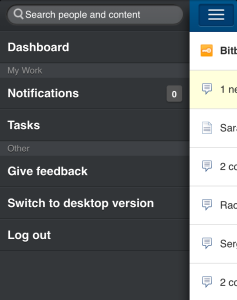
Tap the menu icon  to open the menu panel on the left of the page. Then type text or a person's name in the Search box. The mobile interface offers the quick navigation search, which returns matches on page title only. (See Searching Confluence.) To use the full search, switch to desktop mode.
Screenshot: The menu panel in Confluence mobile
Tap a link on the dashboard or on any other page. Confluence will display the linked page, blog post or comment.
You can:
Screenshot: A page showing Like, Watch and Comment options.

Search for a person's name, then view that person's user profile. Tap the options to phone, SMS or email a colleague directly from your mobile device.
Screenshot: A user profile on Confluence mobile

You can view and respond to your notifications on your phone or other mobile device. Tap the menu icon to open the menu panel on the left of the page. Choose Notifications, and tap a notification to see its details. You can reply, watch or like via the inline actions. Tap Open to open the page or blog post in a new page. For full details, see Managing Notifications in Confluence.
Screenshot: Notifications in Confluence mobile

You can view and manage your tasks on your phone or other mobile device too. Tap the menu icon to open the menu panel on the left of the page. Choose Tasks, and tap the plus sign  to add a new task. Tap a task to see its details. You can add notes, complete a task, and tap a link to open the related page. For full details, see Managing Tasks in Confluence.
Screenshot: Tasks in Confluence mobile

See Notes about Confluence Mobile.