This page describes how to set Java properties and options on startup for Confluence Stand-alone and EAR/WAR versions. |
|
On this page: 
|

|
|
Linux
- From
<confluence-install>/bin (Stand-alone) or <Tomcat-home>/bin (EAR-WAR installation), open setenv.sh. - Find the section JAVA_OPTS=
- Refer to the list of parameters below.
 Add all parameters in a space-separated list, inside the quotations. Add all parameters in a space-separated list, inside the quotations.
|
Windows (starting from .bat file)
- From
<confluence-install>/bin (Stand-alone) or <Tomcat-home>/bin (EAR-WAR installation), open setenv.bat. - Find the section set JAVA_OPTS=%JAVA_OPTS%
- Refer to the list of parameters below.
Add all parameters in a space-separated list. Make sure to keep the string %JAVA_OPTS% in place. |
Windows Service
There are two ways to configure system properties when you Start Confluence Automatically on Windows as a Service, either via command line or in the Windows Registry

Setting Properties for Windows Services via Command Line

Setting Properties for Windows Services via the Windows Registry
In some versions of Windows, there is no option to add Java variables to the service. In these cases, you must add the properties by viewing the option list in the registry.
- Go to
Start >> Run, and run "regedit32.exe".
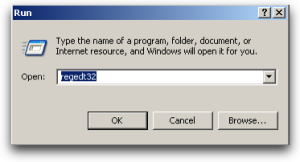 - Find the Services entry:
32-bit: HKEY_LOCAL_MACHINE >> SOFTWARE >> Apache Software Foundation >> Procrun 2.0 >> Confluence
64-bit: HKEY_LOCAL_MACHINE >> SOFTWARE >> Wow6432Node >> Apache Software Foundation >> Procrun 2.0 >> Confluence
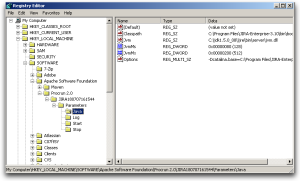 - To change existing properties, especially increasing Xmx memory, double-click the appropriate value.
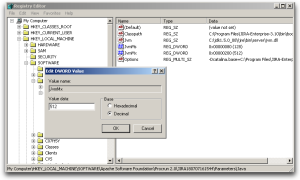 - To change additional properties, double-click options.
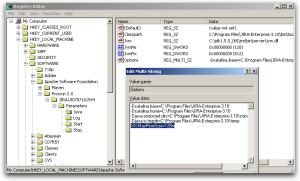 - Refer to the list of parameters below. Enter each on a separate line.
|
Verifying Your Settings
To see what Confluence is using, check Viewing System Properties.

Recognised System Properties

RELATED TOPICS
Recognised System Properties
Fix java.lang.OutOfMemoryError in Confluence


