
Configuring an Internal Directory
To configure an internal directory,
- Log in to the Crowd Administration Console.
- In the top navigation bar, click Directories.
This will display the Directory Browser. - In the left-hand menu, click Add directory.
- Select internal as the directory type and click Next.
- Complete the fields as described in the table below.
- Click the Continue button to configure the directory's permissions.
 Once you have configured the directory's permissions, you will have finished configuring your new directory. You can then map the directory to appropriate applications.
Screenshot: Create internal directory 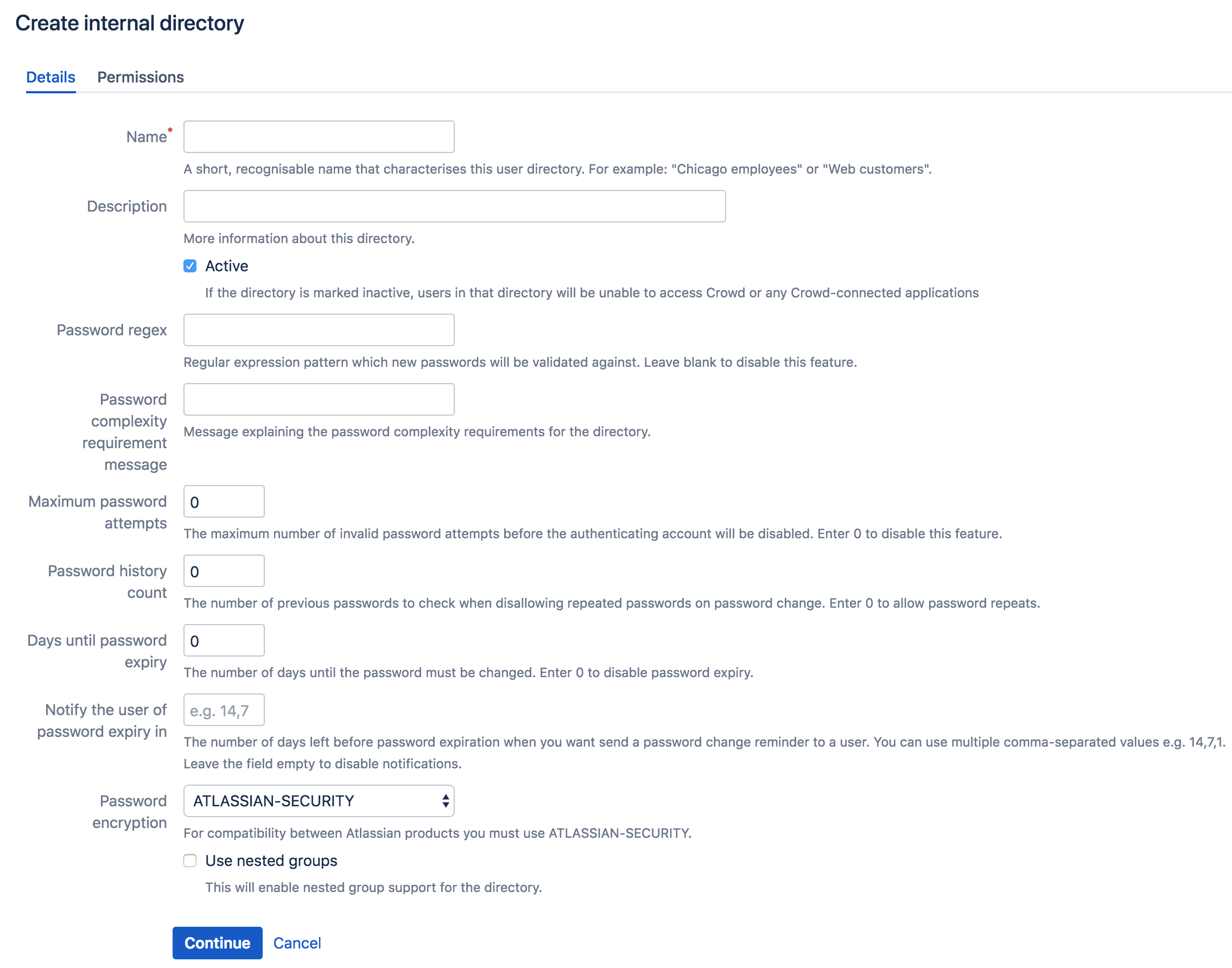
Internal Directory Attributes | Description |
|---|---|
Name | The name used to identify the directory within Crowd. This is useful when there are multiple directories configured, e.g. Chicago Employees or Web Customers. |
Description | Details about this specific directory. |
| Only deselect this if you wish to prevent all users within the directory from accessing all mapped applications. If a directory is not marked as 'Active', it is inactive. Inactive directories:
|
Password regex | Regex pattern which new passwords will be validated against. The regular expression format used is the java.util.regex.Pattern. For example, for an alphanumeric password of at least 8 characters, you could use the pattern: [A-Za-z0-9]{8,}
|
| Password complexity requirement message | A message shown when a user is resetting a password to explain custom complexity requirements set with Password Regex (since Crowd 2.5.2). |
Maximum password attempts | The maximum number of invalid password attempts before the authenticating account will be locked. Enter 0 to disable this feature. |
| Password history count | The number of previous passwords to prevent the user from using. Enter 0 to disable this feature. |
Days until password expiry | The number of days until the password must be changed. This value is in days, enter 0 to disable this feature. |
| Notify the user of password expiry in | How many days before the password expiry would you like to send users a reminder about changing their password. |
Password encryption | If you wish to import users into this directory from another Atlassian product, specify 'ATLASSIAN-SECURITY' in order to ensure password compatibility. |
| Enable or disable support for nested groups on the internal user directory. |