
Run JQL search query using Jira Cloud REST API
Platform Notice: Cloud - This article applies to Atlassian products on the cloud platform.
The legacy endpoint /rest/api/3/search is deprecated and has been fully removed from Jira Cloud. Please migrate all uses of this endpoint to /rest/api/3/search/jql to avoid service disruptions.
Summary
You can use Jira Cloud's REST API to return work items based on a JQL search query.
In turn, we can use additional methods to return Jira work items using the API, including:
- Performing a cURL request
- Creating an automation rule to Send a web request
In all cases, we'll use the Search for issues using JQL (GET) API endpoint. Pagination for this endpoint now relies on the nextPageToken parameter instead of the deprecated startAt parameter. Ensure your script can parse and utilize nextPageToken values for retrieving successive pages of results.
As the JQL query is a request parameter for this resource, it must be URL-encoded in order to work correctly.
Encode the JQL query
There are two ways to encode a JQL query to make it URL-compatible.
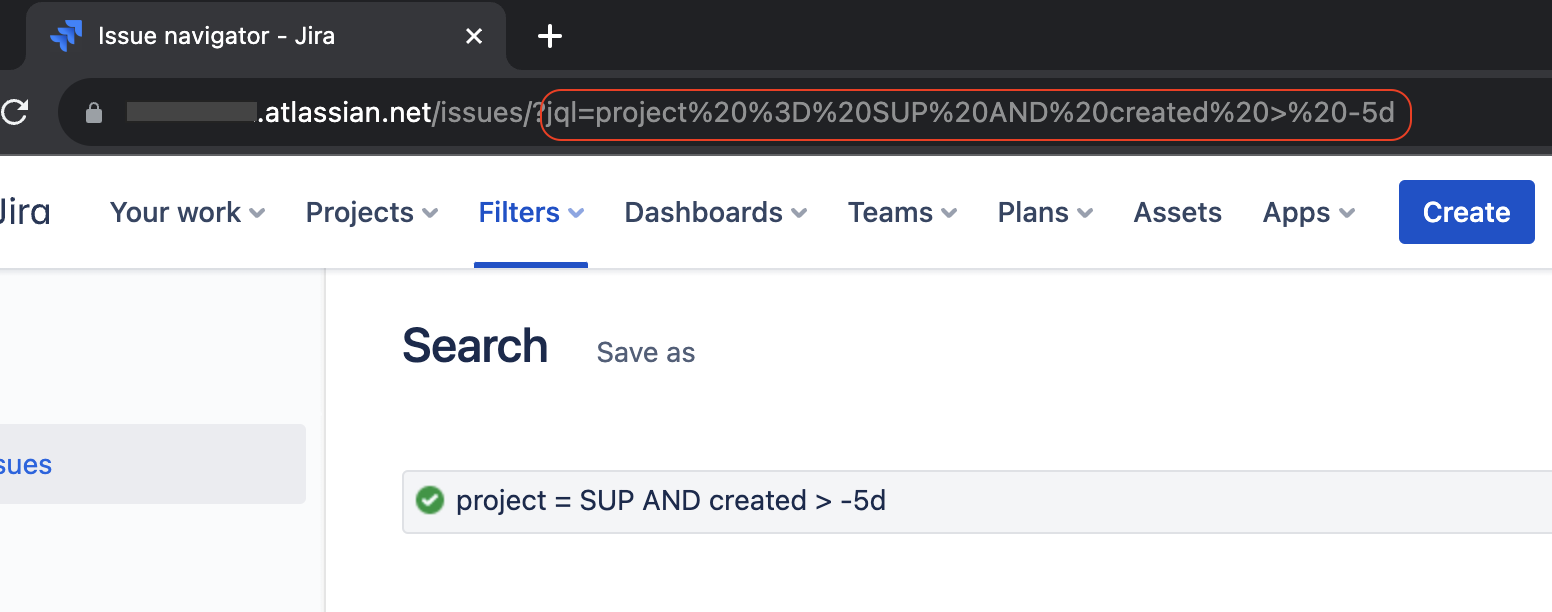
Option 1: Run JQL in Jira and copy from address bar
- In Jira, select Search > View all issues
- Write a JQL query and select the
Search icon
- In your browser's address bar, the JQL query will be encoded following
jql=
- In your browser's address bar, the JQL query will be encoded following
- Copy the text following the "=" character for use in the API
Option 2: Use URL encoding smart value in Jira Automation
Jira Automation supports the URL Encoding Smart Value in automation rules that you create. You can input your JQL query as you would in Jira search to get the proper encoded value returned. If you encounter a 400 Bad Request response, verify that your JQL query is correctly URL-encoded and contains no formatting errors (for example, spaces or unencoded characters in the request URL).
For example:
{{#urlEncode}}project = SUP and created > -5d{{/}}For more details, please refer to our documentation on Smart Values in Jira Automation.
JQL API search with cURL
This operation requires an API token. Please refer to Manage API tokens for your Atlassian account.
This cURL command returns work items created in the last 7 days for the "OP" project.
curl --request GET \
  --url 'https://<yoursitename>.atlassian.net/rest/api/3/search/jql?maxResults=10000&jql%3Dproject%3DOP%20and%20created%20%3E%3D%20-7d' \
  --user 'email@example.com:<api_token>' \
  --header 'Accept: application/json'
JQL API search from Jira automation
The following examples show automation rules that use the Send web request action. For more details on how to build this type of rule please check Automation for Jira - Send web request using Jira REST API.
Automation rule using a manually encoded JQL query:
- Trigger: Scheduled
- Action: Send web request
- Web request URL:
https://<yoursitename>.atlassian.net/rest/api/3/search/jql?fields=key&maxResults=500&jql=project%3DOG%20and%20created%3E%3D%20-5d - Headers:
- Content-type: application/json
- Authorization: Basic <your_api_key>
- HTTP Method: GET
- Web request body: Empty
- Web request URL:
- Action: Audit log action
- Smart values to log:
- Work item URLs: {{webResponse.body.issues.self}}
- Work item keys: {{webResponse.body.issues.key}}
Automation rule using a JQL query encoded by the URL encoding smart value
- Trigger: Scheduled
- Action: Send web request
- Web request URL:
https://<yoursitename>.atlassian.net/rest/api/3/search/jql?fields=key&maxResults=500&jql={{#urlEncode}}project=OG and created>= -5d{{/}} - Headers:
- Content-type: application/json
- Authorization: Basic <your_api_key>
- HTTP Method: GET
- Web request body: Empty
- Web request URL:
- Action: Audit log action
- Smart values to log:
- Work item URLs: {{webResponse.body.issues.self}}
- Work item keys: {{webResponse.body.issues.key}}
Use POST requests for long JQL strings
The /rest/api/3/search/jql endpoint can accept either GET or POST requests. Typically, GET requests are used for simpler search queries, or short JQL strings.
If you're running into URL length limitations, consider generating a POST request to this search endpoint instead. When sending a POST request, you will provide a data object with your JQL search and any necessary parameters. This also means you don't have to URL-encode the JQL search string.
Here's an example cURL request to the search endpoint using POST instead of GET:
curl --request POST \
  --url 'https://<yoursitename>.atlassian.net/rest/api/3/search/jql' \
  --user 'email@example.com:<api_token>' \
  --header 'Accept: application/json' \
  --header 'Content-Type: application/json' \
  --data '{
  "expand": "<string>",
  "fields": [
    "<string>"
  ],
  "fieldsByKeys": true,
  "jql": "<string>",
  "maxResults": 273,
  "nextPageToken": "<string>",
  "properties": [
    "<string>"
  ],
  "reconcileIssues": [
    2154
  ]
}'