[Other doc versions]
[Doc downloads]
[Other doc versions]
[Doc downloads]
Stash is now known as Bitbucket Server .
.
See the
of this page, or visit the Bitbucket Server documentation home page.
This page describes how to connect Stash to a Microsoft SQL Server database.
The overall process for using a SQL Server database with Stash is:
It is assumed here that you already have SQL Server installed and running. SQL Server documentation is available at http://msdn.microsoft.com/en-us/library/bb545450.aspx.
See Supported platforms for the versions of SQL Server supported by Stash.
If you are migrating your data from the internal Stash database, back up the Stash home directory.
If you are migrating your Stash data from a different external database, back up that database by following the instructions provided by the database vendor before proceeding with these instructions.
See Data recovery and backups.
Before you can use Stash with SQL Server, you must set up SQL Server as follows:
| Step | Notes |
| Create a database | e.g. stash. Remember this database name for the connection step below. |
|---|---|
| Set the collation type | This should be case-sensitive, for example, 'SQL_Latin1_General_CP1_CS_AS' (CS = Case Sensitive). |
| Create a database user | e.g. stashuser. This database user should not be the database owner, but should be in the db_owner role. See SQL Server Startup Errors. Remember this database user name for the connection step below. |
| Set database user permissions | The Stash database user has permission to connect to the database, and to create and drop tables, indexes and other constraints, and insert and delete data, in the newly-created database. |
| Enable TCP/IP | Ensure that TCP/IP is enabled on SQL Server and that SQL Server is listening on the correct port (which is 1433 for a default SQL Server installation). Remember this port number for the connection step below. |
| Check the authentication mode | Ensure that SQL Server is operating in the appropriate authentication mode. By default, SQL Server operates in 'Windows Authentication Mode'. However, if your user is not associated with a trusted SQL connection, 'Microsoft SQL Server, Error: 18452' is received during Stash startup, and you will need to change the authentication mode to 'Mixed Authentication Mode'. |
| Check that SET NOCOUNT is off | Ensure that the SET NOCOUNT option is turned off. You can do that in SQL Server Management Studio as follows:
|
Note that Stash will generally require about 25–30 connections to the database.
Here is an example of how to create and configure the SQL Server database from the command line. When Stash and SQL Server run on the same physical computer (accessible through localhost), run the following commands (replacing stashuser and password with your own values):
SQL Server> CREATE DATABASE stash
SQL Server> GO
SQL Server> USE stash
SQL Server> GO
SQL Server> ALTER DATABASE stash SET READ_COMMITTED_SNAPSHOT ON
SQL Server> GO
SQL Server> ALTER DATABASE stash COLLATE SQL_Latin1_General_CP1_CS_AS
SQL Server> GO
SQL Server> SET NOCOUNT OFF
SQL Server> GO
SQL Server> USE master
SQL Server> GO
SQL Server> CREATE LOGIN stashuser WITH PASSWORD=N'password', DEFAULT_DATABASE=master, CHECK_EXPIRATION=OFF, CHECK_POLICY=OFF
SQL Server> GO
SQL Server> ALTER AUTHORIZATION ON DATABASE::stash TO stashuser
SQL Server> GO
This creates an empty SQL Server database with the name stash, and a user that can log in from the host that Stash is running on who has full access to the newly created database. In particular, the user should be allowed to create and drop tables, indexes and other constraints.
You can now connect Stash to the SQL Server database, either:
When running the Setup Wizard at install time:
When migrating to SQL Server:
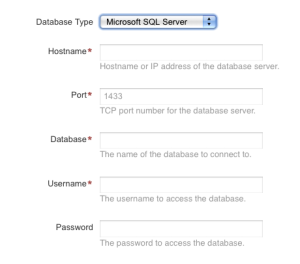
| Hostname | The host name or IP address of the computer running the database server. |
| Port | The TCP port with which Stash can connect to the database server. The default value of 1433 is the default port that SQL Server runs against. You can change that if you know the port that your SQL Server instance is using. |
| Database | The name of the database that Stash should connect to. |
| Username | The username that Stash should use to access the database. |
| Password | The password that Stash should use to access the database. |
 Except where otherwise noted, content in this space is licensed under a Creative Commons Attribution 2.5 Australia License.


