
Refining your backlog
- Setting up your workspace
- Customizing your project
- Creating your backlog
- Refining your backlog
- Planning your sprint
- Tracking your progress
- Wrapping up your work
- Doing more with your agile projects
An essential part of agile is regularly refining ("grooming") or reviewing the contents of your backlog, particularly before starting any new work.
On this page:
Adjust your backlog
Before starting your sprint, you need to prepare your backlog. You can easily adjust your backlog by:
- Right-clicking on issues to view, estimate, or add details
- Ranking your issues by dragging and dropping
- Creating new issues
- Editing an issue using the issue detail view
Estimate issues
- On the Teams in Space board, select Backlog.
- Select each issue on the left-hand side of the screen to display the issue details on the right-hand side of the screen.
- Click the Estimate field on the right-hand side of the screen for each of the issues, and enter the following information for each issue:
| Issue | Estimate |
|---|---|
| Expand travel to destinations outside of The Solar System | 6 |
| Build out a local office on Mars | 2 |
| Add support for teams larger than 20 people | 4 |
| Next Generation version of SeeSpaceEZ travel platform | 3 |
| Plans for our Summer Saturn Sale | 8 |
| Make working with our space travel partners easier | 16 |
| 500 Error when requesting a reservation | 6 |
| Requesting available flights is now taking > 5 seconds | 4 |
Rank the backlog
By default, the issues in your backlog are ranked in the order in which you added them. You can change the rank of your issues according to their relative priority. This helps you organize the issues in your backlog more effectively.
Rankings let you determine whether an issue is more important or urgent than another issue. For example, you may have two separate issues that are both of 'High' priority. Using Jira Software ranking, you can assign one of the issues a higher ranking than the other.
- Find issue TIS-8 in your backlog. This issue has the 'Highest' priority, and therefore should be at the top of your backlog.
- Select TIS-8 and drag it to the top.
- Move issues TIS-2 and TIS-5 to positions two and three in the backlog. These issues have 'High' priority, but they're not as high a priority as TIS-8.

Check issue display limits on boards
Starting with Jira 11.2, Scrum and Kanban boards can display up to 10,000 items when using OpenSearch. If you're using the default Lucene search platform, this limit doesn’t apply. You can check if your board is approaching the limit.
If a board is full, you’ll see a flag informing you about this. When this happens, an admin will need to edit the board filter to refine what's included and excluded.

Check the total number of issues
To check the total number of issues on your board:
- Go to Issues, then select Search for issues.
- Apply a filter to display your issues.
- In the upper-right corner, check the x of y indicator. The y value shows the total number of issues that match your filter, including those that exceed the display limit.
If your search exceeds the display limit, you will see a warning message at the bottom of the issue list: “Too many search results to display. (…)”
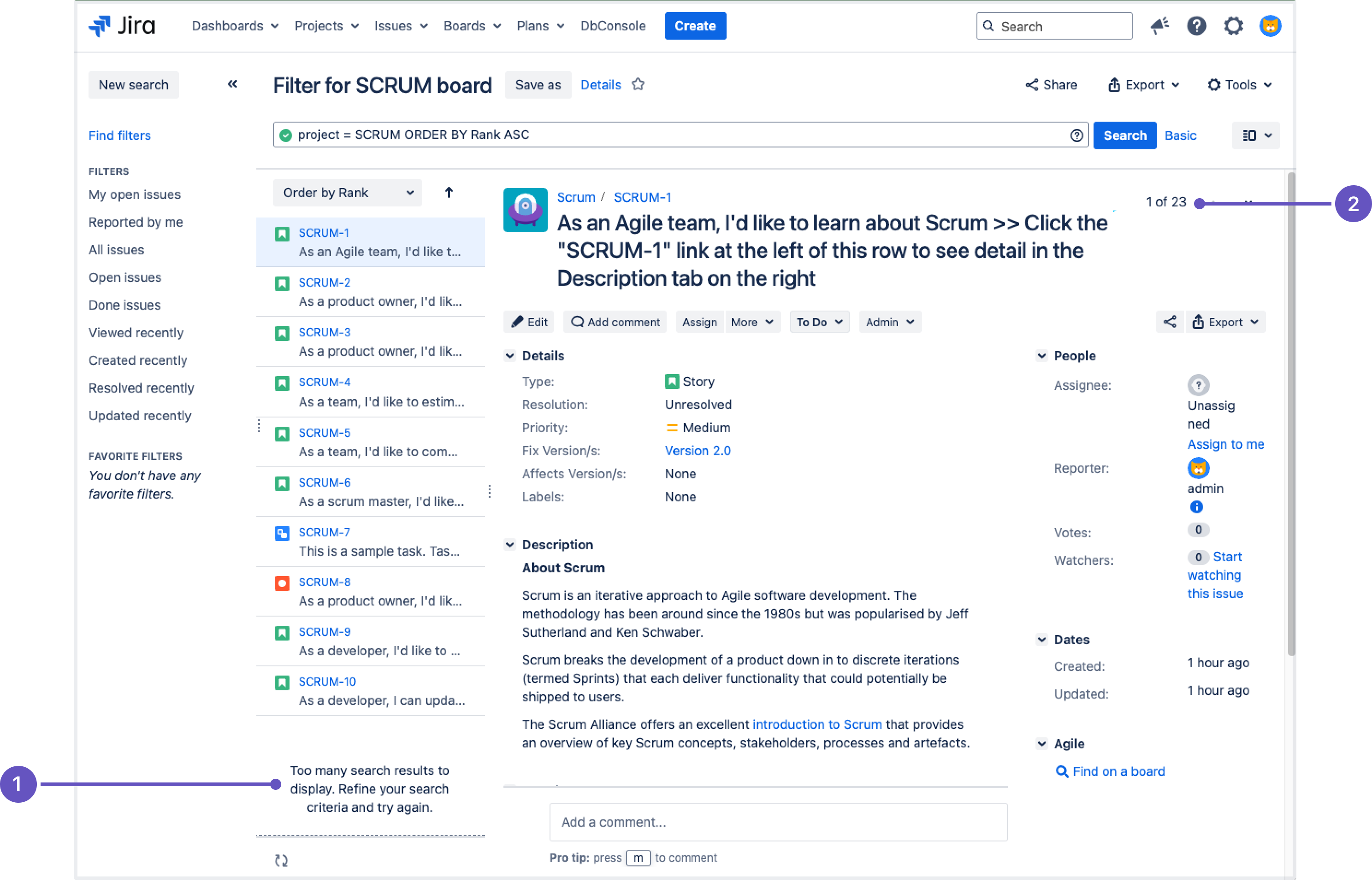
1. Warning message
2. The x of y indicator
Understand issue search limits
There are two important limits to consider when searching for issues:
- Maximum issues displayed in the UI
TheIssueSearchLimit.getMaxResultssetting controls how many issues Jira can render in the issue search. By default, this is set to 1000 (IssueSearchLimits.DEFAULT_MAX_RESULTS). You can override this value using thejira.search.views.default.maxproperty. - Maximum search results from the index
TheIssueSearchLimit.getSearchPlatformMaxResultWindowsetting determines the maximum number of search results that can be returned from the index search operation. This value varies depending on the index search platform used. For OpenSearch, the default value is 10,000.
Use REST APIs to check board and sprint limits
If you think a rapid view or board filter might return more results than the allowed limit, you can use a REST API call to check the limits.
Backlog view limits
To get the number of issues in the backlog, send this request:
GET /rest/greenhopper/1.0/xboard/plan/backlog/data.json?rapidViewId={rapidViewId}&selectedProjectKey={projectKey}In the response, totalHits shows the number of items on the board. For example:
{
    "issues": [],
    // ...
    "maxResultWindow": 2147483647,
    "totalHits": 25
    // ...
}
Active sprint or Kanban board limits
To get the number of issues in an active sprint or Kanban board, send this request:
GET /rest/greenhopper/1.0/xboard/work/allData.json?rapidViewId={rapidViewId}&selectedProjectKey={projectKey}In the response, totalHits shows the number of items in an active sprint or Kanban board. For example:
{
    "rapidViewId": 1953,
    // ...
    "maxResultWindow": 2147483647,
    "totalHits": 4
}
Current limits
To check the current limits, use the following REST API call:
GET /api/2/searchLimits/maxResultWindowThe response will show the value of the current limit.
Great! You've just refined your backlog. Now, let's plan out the details of your sprint!