
How to resolve Automation rules migration errors
Platform notice: Server and Data Center only. This article only applies to Atlassian products on the Server and Data Center platforms.
Support for Server* products ended on February 15th 2024. If you are running a Server product, you can visit the Atlassian Server end of support announcement to review your migration options.
*Except Fisheye and Crucible
Purpose
This document explains how to resolve errors from migrating automation rules. Starting with JCMA version 1.12.30, the tool automatically converts DC entity IDs to cloud IDs. However, some configurations may only partially resolve, leaving unresolved entities.These unresolved entities will finally be reported in the file Requires-attention_Post-migration with the category - Automation rules resolution.
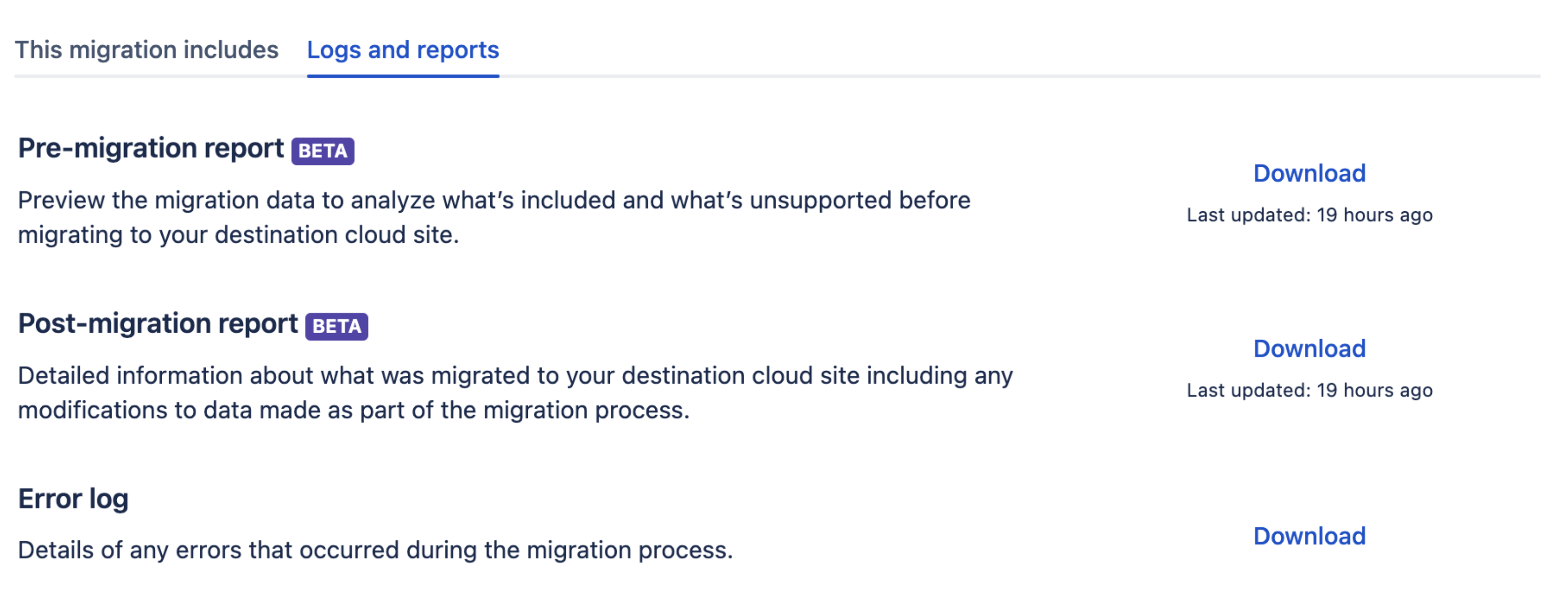
Post-migration zip location

JCMA version
Only supported in JCMA version 1.12.32 and later.
IMPORTANT: Support, CMMs, and customers should be aware that the solution only partially resolves automation rule configurations. Not everything unresolved is reported; please refer to section #When automation resolution errors may not be reported for more details.
Related articles:
Summary
During migration, automation rules may reference various Jira entities that need resolution. These entities are critical components of your automation rules and may require manual attention if they don't automatically resolve during migration.
Key entities requiring resolution
Entity type | Description |
|---|---|
Project |
|
Issue Type |
|
Assignee |
|
Issue Links |
|
Priority |
|
Reporter |
|
Resolution |
|
Sprint |
|
Custom Field |
|
JQL |
|
Advanced Field |
|
The entity types that can’t be resolved are sent to the report.
Finding and resolving migration errors
Identifying unresolved entities
When reviewing your post-migration report:
Download the post-migration report from your migration dashboard
Open the Requires-attention_Post-migration file
Look for entries with the category "Automation rules resolution"
Pay special attention to entries containing: "couldn't fully resolve this entity since it references missing identifiers"
Understanding error messages
When you see an unresolved entity error, it typically looks like this:
"We couldn't fully resolve automation for the entity since it references RULE IDENTIFIER 111, ACTION IDENTIFIER 222"
This means:
The automation rule contains references to Server/Data Center entities
These entities need to be mapped to their Cloud counterparts
Manual intervention is required to update the references
Resolution steps
Identify the affected rule
Use the entity type and name from the report
Locate the corresponding rule in your Cloud instance
Find the missing identifiers
Note the specific IDs mentioned in the error message
These might be rule IDs, action IDs, or other entity references
Map to Cloud IDs
Find the corresponding entities in your Cloud instance
Use the ID mapping page to find the correct Cloud IDs
Document the mapping for future reference
Update the rule
Manually update the rule configuration with the new Cloud IDs
Verify all references have been updated
Test the rule to ensure it works as expected
When automation resolution errors may not be reported:
There are many scenarios where we may not see automation resolution errors in the requires attention report:
When a migration is incomplete because of some failure in one of the intermittent stages - automation resolution errors can’t be guaranteed to be present in the requires attention report.
When automation entity ID references are completely resolved and there is no error to report.
When there is an unknown identifier which the application doesn’t consider for resolution.
What’s not covered in reporting:
Anything not covered in the above table isn’t included in the resolution or reporting.